



If you are sitting on your couch and thinking, why is my Roku remote is not working? You are not alone. Millions of Roku users face this exact problem every single day. It is one of the most searched tech questions on Google, and the good news is that most of the time, you can fix it yourself without calling anyone or spending a single dollor.
The frustrating part is that when your Roku remote is not working, you cannot change channels, adjust the volume, or even navigate the home screen. Everything just freezes. Whether you use a standard infrared (IR) remote or an enhanced wireless remote, the causes are different, and so are the solutions. That is why this guide breaks everything down step by step so that even a student in 8th class can understand and fix the issue on their own.
In this complete guide, we will cover every possible reason why your Roku remote is not working and give you clear, easy-to-follow solutions. From dead batteries to pairing issues, from broken remotes to Wi-Fi problems, we have got everything covered. By the end of this article, you will know exactly what to do the next time your Roku remote stops responding.
Types of Roku Remotes: Which One Do You Have?
Before you fix the problem, you need to know what type of remote you are working with. Roku has two main types of remotes, and they work very differently.
| Feature | Standard IR Remote | Enhanced Wireless Remote |
|---|---|---|
| How it works | Infrared (line of sight) | Wi-Fi / RF wireless |
| Needs pairing? | No | Yes |
| Works through walls? | No | Yes |
| Voice search? | No | Yes (some models) |
| Headphone jack? | No | Some models |
| Common issues | Blocked path, dirty sensor | Pairing lost, Wi-Fi issue |
How to tell which remote you have:
- Look for a pairing button inside the battery compartment
- If there is a pairing button → You have an Enhanced Wireless Remote
- If there is no pairing button → You have a Standard IR Remote
Some newer voice remotes do not have a physical pairing button. Instead, they pair by holding the Back + Home buttons together for 5 seconds. We will cover this in detail in Section 7.
Knowing this makes it much easier to find out why my roku remote is not working and which fix to apply.
Most Common Reasons Why My Roku Remote Is Not Working
There are many reasons why my roku remote is not working. Here are the most common ones:
1. Battery Problems
- Dead batteries are the number one reason a Roku remote is not working
- Weak or dying batteries can cause delayed responses or no response at all
- Corroded battery contacts can block power completely
2. Pairing Issues (Enhanced Remotes)
- Your remote may have lost its wireless connection to the Roku device
- This happens after a power outage, software update, or battery replacement
3. Infrared Signal Blocked (IR Remotes)
- Something is blocking the line of sight between the remote and the Roku device
- Dirty IR sensor on the remote or the Roku player
- Direct sunlight or fluorescent light interfering with the signal
4. Wi-Fi Network Problems
- Enhanced remotes communicate over your home Wi-Fi
- If your router changes or goes down, the remote can lose its connection
- Network congestion can cause lag or complete disconnection
5. Software or Firmware Glitches
- A Roku software update gone wrong can cause your remote to stop responding
- Temporary system bugs that a simple restart can solve
6. Physical Damage
- Dropped remote with damaged internal components
- Water damage
- Stuck or broken buttons
7. Interference from Other Devices
- Other wireless devices operating on the same frequency
- Baby monitors, cordless phones, or microwave ovens can interfere
Quick Diagnostic Test: Is It the Remote or the Roku?
Before spending time troubleshooting the wrong thing, do this 60-second test to figure out whether the problem is with your remote or your Roku device.
Test 1: The Phone Camera IR Test (For IR Remotes)
This test tells you instantly if your standard IR remote is transmitting a signal:
- Open the camera app on your smartphone
- Point the front of your Roku remote directly at the phone’s camera lens
- Press and hold the Home button on the remote
- Look at your phone screen. Do you see a white or purple light flashing from the remote tip?
- Light flashing = Remote is working fine → Problem is with the Roku device
- No light at all = Remote is dead or broken → Focus on fixing the remote
Test 2: The Roku Mobile App Test (For All Remotes)
- Download the Roku app on your phone (free on iOS and Android)
- Connect to the same Wi-Fi as your Roku
- Try controlling the Roku using the app’s remote
- App works fine = Your physical remote is the problem
- App also does not work = Your Roku device itself has a problem
This two-minute diagnostic saves you from going in the wrong direction entirely.
Step-by-Step Fixes for My Roku Remote Is Not Working
Let us go through each fix one by one. Start from the top and work your way down.
Fix 1: Replace the Batteries (Always Start Here)
This sounds too simple, but it solves the problem more than 40% of the time. Whenever my roku remote is not working, start here.
- Remove the battery cover from the back of the remote
- Take out the old batteries completely
- Wait 30 seconds
- Insert brand new AA or AAA batteries (check your remote’s requirement)
- Make sure the positive (+) and negative (-) ends are facing the right direction
- Put the cover back and test the remote
Pro Tip: Do not use rechargeable batteries in Roku remotes. They provide slightly lower voltage and can cause connection issues.
Fix 2: Restart Your Roku Device
A simple restart can fix many software glitches that make my roku remote is not working.
- Unplug your Roku device from the power outlet
- Wait at least 30 seconds (not just 5 seconds, actually wait!)
- Plug it back in
- Wait for Roku to fully load up (about 1 minute)
- Try the remote again
This clears the temporary memory and refreshes the connection between the remote and the player.
Fix 3: Check and Clear the Line of Sight (For IR Remotes)
If you have a standard IR remote and it is not working, something might be blocking the signal.
- Point the remote directly at the Roku device
- Remove any objects between you and the Roku player (books, decorations, TV stands)
- Make sure the front of the Roku player is visible and not inside a cabinet
- Clean the IR sensor on the remote using a soft, dry cloth
- Clean the IR receiver on the Roku player as well
- Try moving closer to the Roku device (within 10 feet)
Direct sunlight on the Roku device can also wash out the IR signal, so check if sunlight is hitting your Roku player.
Fix 4: Re-Pair Your Enhanced Wireless Remote
If you have an enhanced remote and my roku remote is not working, it may have lost its pairing. Here is how to fix it:
- Remove the batteries from the remote
- Unplug your Roku device from the power
- Wait 5 seconds, then plug the Roku back in
- Once the Roku home screen appears, reinsert the batteries into the remote
- Open the battery compartment of the remote there should be a small pairing button
- Press and hold the pairing button for 3 to 5 seconds
- A pairing dialog will appear on your TV screen
- Wait for the remote to pair (usually takes 10–30 seconds)
If this does not work, try the pairing process one more time. Sometimes it takes two attempts.
Fix 5: Check Your Wi-Fi Connection
Enhanced remotes need your Wi-Fi to work. If my roku remote is not working after the above steps, check your internet.
- Go to your router and restart it (unplug for 30 seconds, plug back in)
- Make sure your Roku device is still connected to Wi-Fi
- If you recently changed your Wi-Fi password, you will need to reconnect your Roku
- Keep the Roku device closer to your router for a stronger signal
- Avoid placing your Roku near cordless phones or microwaves
Fix 6: Update Roku Software
Outdated software can cause compatibility issues that make my roku remote is not working.
Since you cannot use the remote right now, use the Roku mobile app to navigate:
- Open the Roku app on your phone
- Go to Settings → System → System Update → Check Now
- If an update is available, install it
- Restart the Roku after the update
Fix 7: Perform a Factory Reset on the Roku Remote
If nothing else works and your Roku remote is still not working, try resetting just the remote:
- Remove the batteries from the remote
- Press every button on the remote 2–3 times to discharge any remaining power
- Wait 5 minutes
- Reinsert the batteries
- Press the pairing button (for enhanced remotes) and try again
Fix 8: Factory Reset Your Roku Device (Last Resort)
This wipes everything and starts fresh. Only do this if all other fixes have failed and your Roku remote is still not working.
Method 1 – Using the physical reset button on the Roku device:
- Find the reset pinhole on the back or bottom of your Roku device
- Insert a straightened paperclip into the hole
- Press and hold for 10–15 seconds
- The Roku will restart and return to factory settings
Method 2 – Through Settings (if you can use the mobile app as remote):
- Go to Settings → System → Advanced System Settings → Factory Reset
- Follow the on-screen instructions
Warning: Factory reset deletes all your accounts, channels, and preferences. You will need to set up the Roku from scratch.
How to Re-Pair Your Roku Remote
Many users find that their Roku remote is not working simply because it lost its pairing. Here is a more detailed walkthrough:
Step 1: Make sure your Roku device is fully powered on and showing the home screen.
Step 2: Remove the batteries from your remote for 30 seconds.
Step 3: Reinsert the batteries firmly.
Step 4: Open the battery compartment door and locate the small round or rectangular pairing button.
Step 5: Press and hold the pairing button for exactly 5 seconds. You will see the LED status light begin to flash.
Step 6: Keep your eyes on the TV screen. A dialog box saying “Pairing Remote” should appear within 10–15 seconds.
Step 7: Release the pairing button once you see the pairing screen. Do not press anything else.
Step 8: Wait for the pairing to complete. The on-screen message will confirm when it is done.
Step 9: Test every button navigation, volume, Home, Back, and streaming shortcut buttons.
If the pairing screen never appears on your TV, try using the Roku mobile app to first navigate to Settings → Remotes & Devices → Pair New Device.
Pairing a Remote That Has NO Pairing Button
Some newer Roku voice remotes, especially those released in 2024 and 2025, do not have a physical pairing button inside the battery compartment. If this is your remote, here is how to pair it:
Method – Back + Home Button Combination:
- Make sure your Roku is fully powered on
- Insert fresh batteries into the remote
- Point the remote at the Roku device
- Press and hold the Back button and the Home button at the same time
- Hold both buttons for 5 seconds until the LED light starts flashing
- Watch the TV screen for the pairing confirmation message
- Wait for pairing to complete
Alternative – Hold Back + Home for 20 seconds to fully reset the remote:
If the 5-second method does not work, press and hold Back + Home for 20 seconds. This fully resets the remote’s memory before re-pairing. After the LED flashes rapidly and then stops, release the buttons and try pairing again.
This method works on:
- Roku Voice Remote (newer models without button)
- Roku Voice Remote Pro
- Roku Streaming Stick 4K+ remote
Roku Remote Volume and Power Buttons Not Working (CEC Fix)
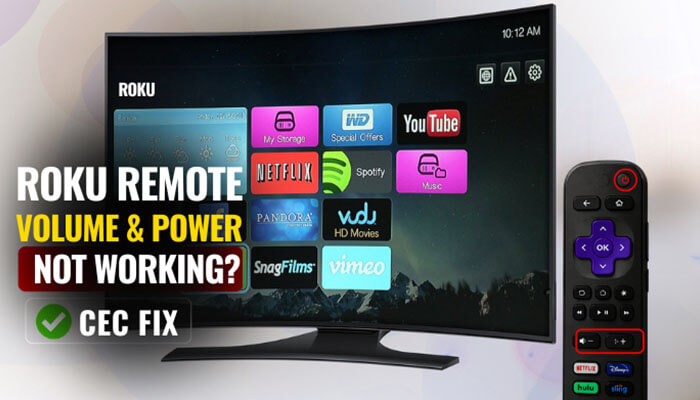
This is one of the most misunderstood Roku remote problems. Many users think their entire Roku remote is not working when actually only the volume buttons or power button are not working. Navigation, playback, and everything else is fine, just volume and power are dead. This is a separate issue with a very specific fix.
Why this happens:
Roku voice remotes control your TV’s volume and power using one of two methods:
- IR (Infrared): The remote sends an IR signal directly to your TV’s sensor
- CEC (Consumer Electronics Control): The remote sends commands through the HDMI cable to the TV
If CEC is disabled on your TV, or if the IR path to the TV’s sensor is blocked, the volume and power buttons will not respond even though the rest of the remote works perfectly.
How to fix Roku remote volume not working
Step 1 – Re-run the TV setup on your Roku:
- Go to Settings → Remotes & Devices → Remote
- Select your remote from the list
- Choose “Set up remote for TV control.”
- Follow the on-screen instructions. Roku will send test tones and ask you to confirm when the sound stops
- Complete the entire setup process
Step 2 – Enable CEC on your TV:
Each TV brand has a different name for CEC:
| TV Brand | CEC Setting Name |
|---|---|
| Samsung | Anynet+ |
| LG | SimpLink |
| Sony | BRAVIA Sync |
| Vizio | CEC |
| TCL | CEC |
| Hisense | HDMI CEC |
| Panasonic | VIERA Link |
- Go into your TV’s settings menu
- Look under Display, HDMI, or System settings
- Find the CEC option (use the name from the table above for your TV brand)
- Make sure it is turned ON
- Go back and test the Roku remote volume and power buttons
Step 3 – Check for IR path blockages:
- Make sure nothing is blocking the front sensor of your TV (a soundbar placed directly in front is a very common culprit)
- Try pointing the remote more directly at the front of the TV
- Remove any external audio receivers or game consoles temporarily
Important note: Some TV brands (like Bang & Olufsen and a few others) are not fully supported by the Roku remote for volume and power control. If your TV brand is not cooperating after all fixes, contact the TV manufacturer for compatibility information.
Also note: Voice commands like “Turn off the TV” only work through CEC; they do not work on IR remotes. So if you want voice-controlled power, make sure CEC is enabled.
Roku Voice Remote Not Working: Microphone and Voice Button Fix
If you have a Roku Voice Remote and the microphone button is not working, meaning you press it and either nothing happens, or you get a message like “I couldn’t hear you, please try again,” this section is specifically for you.
Why the voice button stops working:
- The remote has lost its pairing and needs to be re-connected
- The Roku device’s software needs a refresh
- The microphone itself may have debris or obstruction
- Your internet connection is too slow (voice search needs a working internet connection)
How to fix the Roku voice remote microphone
Step 1 – Re-pair the remote:
- Hold Back + Home for 20 seconds to fully reset the voice remote
- Then hold Back + Home for 5 seconds to re-pair it
- Wait for the pairing confirmation on screen
Step 2 – Check your internet speed:
- Voice commands are processed in the cloud, meaning they need a working internet connection
- If your internet is very slow or down, voice search will always fail
- Restart your router and try again
Step 3 – Make sure the microphone is not blocked:
- Look at the microphone button area on your remote
- Make sure there is no dust, debris, or physical damage around the button
- Gently press the mic button fully. Sometimes it can feel loose after heavy use
Step 4 – Check the Roku settings for voice:
- Go to Settings → Remotes & Devices → Remote
- Select your voice remote
- Check that voice features are enabled and the remote is properly recognized
Step 5 – Update the Roku software:
- Voice functionality issues are often fixed in Roku software updates
- Go to Settings → System → System Update → Check Now and install any updates
If the voice button has been working for years and suddenly stopped, a re-pair combined with a software update fixes it about 90% of the time.
Roku Remote Not Working After Battery Change
A very common situation you change the batteries and suddenly my roku remote is not working even more than before. Here is why this happens and how to fix it.
Why it happens:
- The battery contacts may have corroded
- The new batteries may have been inserted the wrong way
- Enhanced remotes sometimes lose their pairing after a battery swap
How to fix it:
- Double-check the battery direction (+ and – must match the diagram inside the compartment)
- Look at the metal contacts inside; if they look green or white, they are corroded
- Clean corroded contacts gently with a cotton swab dipped in white vinegar, then dry completely
- Re-pair the remote after changing batteries (for enhanced remotes, this is very important)
- Try a different brand of batteries
Roku IR Remote vs Enhanced Remote Troubleshooting Differences
Since both remote types are so different, here is a quick comparison of how to troubleshoot each one when my roku remote is not working:
| Problem | IR Remote Fix | Enhanced Remote Fix |
|---|---|---|
| No response | Check line of sight | Re-pair the remote |
| Delayed response | Clean IR sensor | Check Wi-Fi signal |
| Buttons not working | Check batteries | Check batteries + re-pair |
| Works sometimes | Interference from light | Router interference |
| Stopped after update | Restart Roku | Update firmware + re-pair |
| Lost connection | N/A no pairing | Re-pair with pairing button |
Using the Roku Mobile App as a Backup Remote
When my roku remote is not working, you do not have to sit helpless. The Roku Mobile App is a free app that turns your smartphone into a fully working Roku remote.
How to set it up:
- Download the Roku app from the Google Play Store or Apple App Store
- Make sure your phone and Roku device are on the same Wi-Fi network
- Open the app and tap the Remote icon at the bottom
- You will see a full on-screen remote that controls your Roku
What the app can do:
- Full navigation (up, down, left, right, OK)
- Home, Back, and Options buttons
- Volume and power control
- Voice search
- Keyboard for typing (much easier than using the on-screen keyboard)
- Private listening through your phone’s headphone jack
The Roku app is one of the best backup solutions when my roku remote is not working, and many users actually prefer it over the physical remote.
Troubleshooting the Roku app:
- If the app cannot find your Roku, make sure both are on the exact same Wi-Fi network
- If your Roku connects to 5GHz Wi-Fi and your phone is on 2.4GHz, they will not see each other
- Try switching your phone to the same band as the Roku
When to Reset Your Roku Device
Sometimes the issue is not the remote at all, it is the Roku device itself acting up and ignoring input. If my roku remote is not working even after all the above fixes, a full device reset might be needed.
Signs you need to reset the Roku device:
- Remote worked fine but Roku started freezing
- Roku does not respond to any button even from the mobile app
- Channels keep crashing
- Roku is stuck on the loading screen
How to restart without a remote:
- Go to the back or bottom of your Roku device
- Find the physical reset button (small pinhole)
- Insert a paperclip and press for 10–15 seconds
- Roku will restart
How to do a soft restart without a remote:
- Simply unplug the power cable, wait 30 seconds, and plug it back in
When to Replace Your Roku Remote
Sometimes the Roku remote is physically broken and no amount of troubleshooting will fix it. Here are clear signs that you need a new remote:
Signs your remote needs to be replaced:
- Buttons are physically stuck, cracked, or broken
- Water got inside the remote
- The remote was dropped from a height and stopped working immediately
- IR light does not blink at all (check with phone camera, point remote at phone camera and press a button; you should see a flash)
- Re-pairing works temporarily but keeps disconnecting
Where to get a replacement Roku remote:
You can buy a replacement Roku remote from:
- The official Roku website (roku.com)
- Amazon searches for your specific Roku model’s remote
- Walmart, Best Buy, or local electronics stores
- Make sure you buy a remote compatible with your specific Roku model
Cost: Replacement Roku remotes typically cost between $10 and $25 USD depending on the model.
Tips to Prevent Roku Remote Issues in the Future
Now that my roku remote is not working issue is fixed, here are some tips to make sure it does not happen again:
- Change batteries proactively: Do not wait for the remote to completely die; replace batteries every 6–12 months
- Keep the remote away from water: Bathroom or kitchen use increases risk of damage
- Do not drop it: use a remote caddy or holder if possible
- Keep your Roku firmware updated: Updated software prevents bugs that cause pairing issues
- Restart your Roku monthly: Just like a computer, regular restarts keep things running smoothly
- Keep your router healthy: Restart your router every few weeks to maintain a strong Wi-Fi signal
- Avoid placing Roku inside enclosed cabinets: Poor ventilation causes overheating, which affects remote response
- Keep your remote and Roku within 30 feet of each other for reliable performance
Final Thoughts
Dealing with a situation where my roku remote is not working is genuinely frustrating especially when you just want to relax and watch something. But as you have seen in this guide, almost every Roku remote problem has a simple solution that you can do yourself at home.
Start with the basics: replace the batteries and restart your Roku. Most of the time, that is all it takes. If that does not work, try re-pairing your remote, checking your Wi-Fi, or using the Roku mobile app in the meantime. And if my roku remote is not working due to physical damage, a replacement remote is affordable and easy to find.
The key thing to remember is that you do not need to panic when my roku remote is not working. Follow the steps in this guide calmly, one at a time, and you will almost certainly get your remote back to full working condition within a few minutes.
If you found this guide helpful, bookmark it for the future because Roku remote issues can pop up again, and now you know exactly what to do!
My Roku Remote Not Working FAQs
1. Why is my Roku remote is not working even with new batteries?
If your Roku remote is not working even after a battery change, the most likely cause is a lost pairing (for enhanced remotes) or a blocked IR signal (for standard remotes). Follow the re-pairing steps in this guide.
2. My Roku remote is not working after an update. What should I do?
Unplug your Roku, wait 30 seconds, and restart it. If the remote still does not respond, re-pair it using the pairing button inside the battery compartment.
3. Can I use my Roku without a remote?
Yes! Download the free Roku mobile app on your phone. It works as a full remote as long as your phone and Roku are on the same Wi-Fi network.
4. Why does my Roku remote work sometimes but not always?
This is usually caused by weak batteries, an unstable Wi-Fi connection, or interference from other wireless devices. Replace the batteries and move your router closer to the Roku.
5. How do I know if my Roku remote is IR or enhanced?
Open the battery compartment. If you see a small pairing button inside, it is an enhanced wireless remote. If there is no button, it is a standard IR remote.
6. My Roku remote is not working and I cannot access settings. What do I do?
Use the Roku mobile app to access settings without the physical remote. Go to Settings → Remotes & Devices → Pair New Device.
7. How long do Roku remotes last?
A Roku remote typically lasts 2–4 years with normal use. If yours is older and keeps having problems, it may be time for a replacement.
8. Is there a reset button on the Roku remote itself?
Enhanced remotes have a pairing button inside the battery compartment, but it is not a full reset button. To reset the remote, remove the batteries, press all buttons, wait 5 minutes, and reinsert batteries.
The post Why My Roku Remote Is Not Working and How to Fix It first appeared on Tycoonstory Media.
Source: Cosmo Politian